Activities
The activity list holds every activity FitEdit has, whether you imported it, copied it from your watch or synced it from Garmin.
The activity card
Each activity in the list is a card.
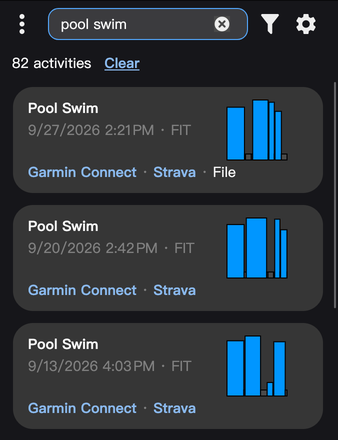
- The title is at the top. Under it are the date and time the activity started and the file format, such as FIT.
- The description comes next. If an activity has none, point at its card to see Add a description.
- The bottom line shows where the activity came from, such as Garmin Connect or File. Click Garmin Connect to open the activity on Garmin Connect.
- The thumbnail shows the GPS track if the file has one. For indoor activities, such as a treadmill run or a pool swim, the thumbnail shows laps. The thumbnail can also show heart rate and pace/speed. To choose, see Settings.
- The trash can at the bottom right removes the activity from FitEdit. Click it twice to confirm. It does not delete the activity from Garmin.
Click the title or description to change it. Press Enter to save, or Esc to cancel. The change stays in FitEdit. It does not reach Garmin.
Open an activity
Click a card to open it in a new tab.
If FitEdit has more than one copy of an activity, such as a Garmin download and a file you imported, it shows them as one card. When you open the card, FitEdit asks which copy to open.
To close an activity, click the X on its tab. If it has Data or pool length edits you have not saved, FitEdit asks what to do with them.
- Save and close saves them as a new version.
- Keep open leaves the tab open.
- Discard drops them.
Search
Type in the Search box above the list. FitEdit shows the activities whose title matches. Click Clear to see all of them again.
Filter
Click the funnel icon next to the search box.
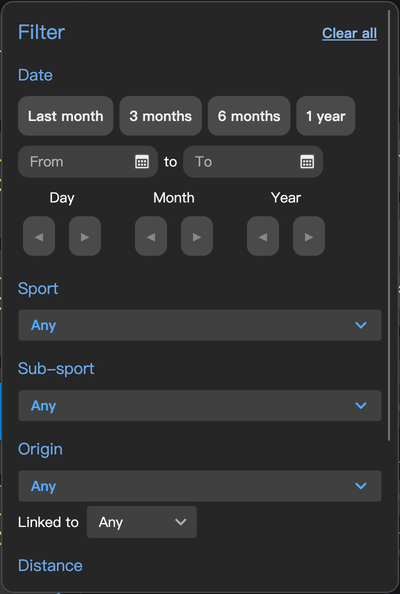
Use these filters to narrow the list.
- Date. Click Last month, 3 months, 6 months or 1 year, or choose your own dates. The arrows step the range back or forward by a day, a month or a year.
- Sport and Sub-sport are the type of activity, such as running and treadmill.
- Origin is where the activity came from. It can be a file, a device or Garmin Connect.
- Linked to is the sites that have the activity. Choose one site, every site or none.
- Distance is in miles or kilometers. Click mi to switch.
- Duration is in minutes.
- Description. Turn on Has a description to see only the activities you wrote notes for.
Click Clear all to remove every filter.
Import, export and sync
Click the ⋮ button at the top left of the list.
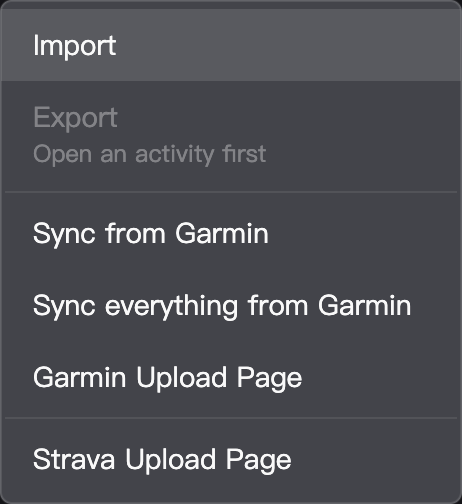
- Import adds a FIT, TCX or GPX file from your computer. You can also drag a file onto the activity list.
- Export saves the open activity as a file. You can choose FIT, TCX or GPX. In trial mode, export counts toward your 3 activities.
- Sync from Garmin downloads the Garmin activities that are newer than the newest one in FitEdit.
- Sync everything from Garmin lists every Garmin activity and downloads the ones FitEdit does not have. Use it to fill gaps. With years of activities, it can take a long time.
- Garmin Upload Page opens the Garmin Connect page for uploading a file.
- Strava Upload Page opens the Strava page for uploading a file.
To upload a fixed activity, Export it as FIT. Then click Garmin Upload Page or Strava Upload Page and choose the file.
Sync requires a Garmin Personal API key. See Connect Garmin.
Import from your Garmin device
If you plug your watch into your computer’s USB port, FitEdit asks whether to search it for activities. Click Continue.
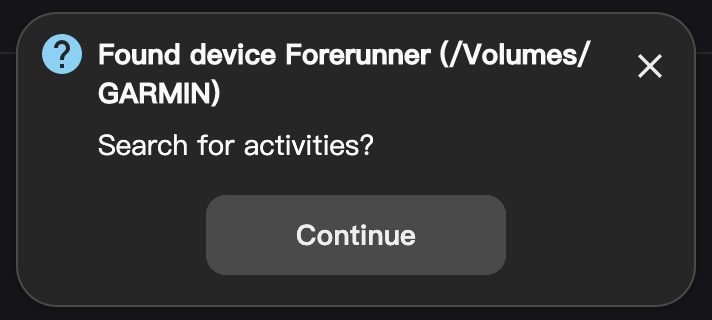
To find an activity, use Search or the From and To dates. Click each activity you want, then click Import.
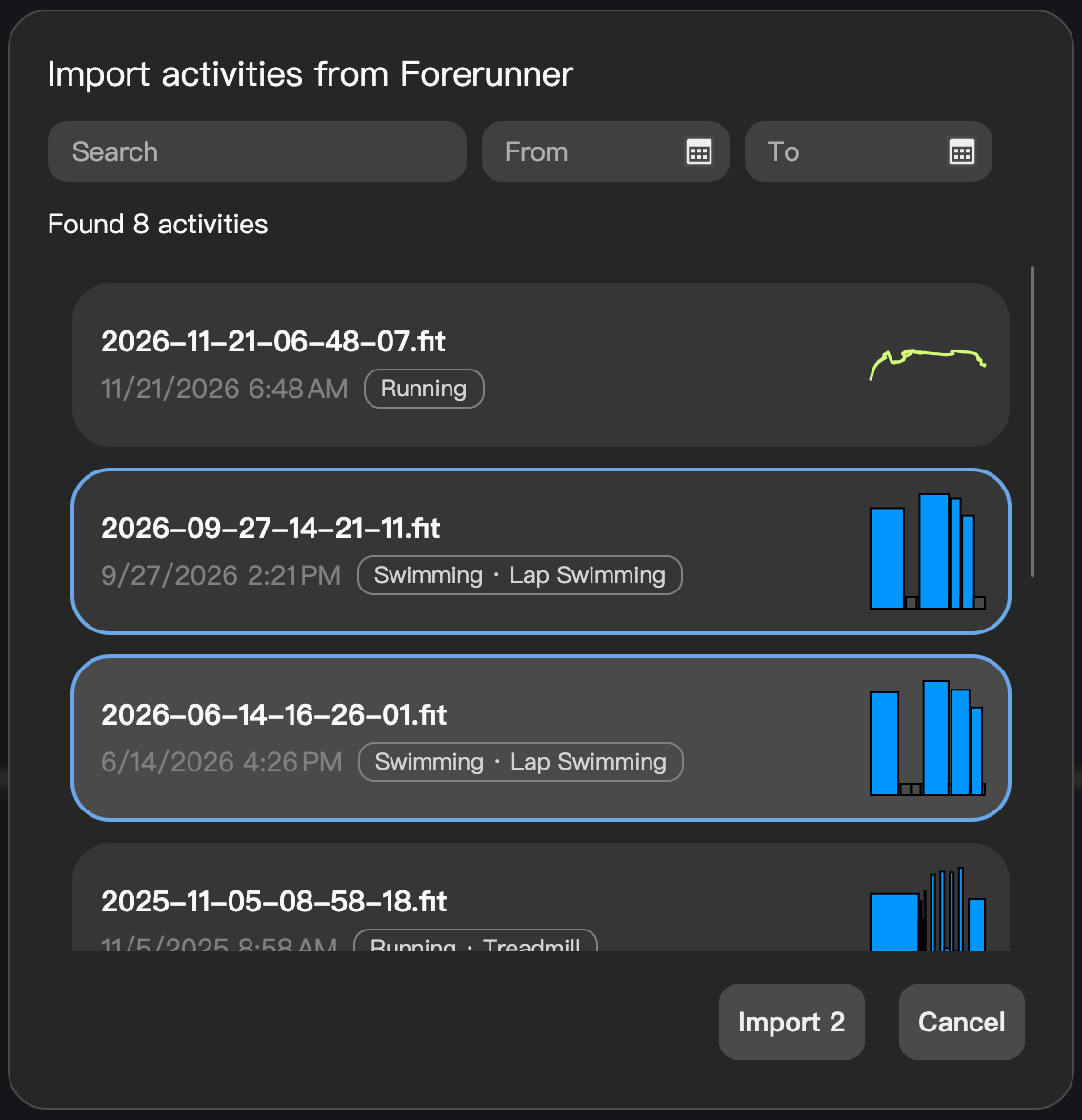
If another program, such as Garmin Express, is using the watch, close that program. FitEdit will connect when the watch is free.