Tasks
A task solves a common problem, such as a watch that kept recording on the drive home.
Open an activity and click Tasks. The tasks are in groups, in the order you usually use them. First Check the file and Fix bad data. Then Edit the activity.
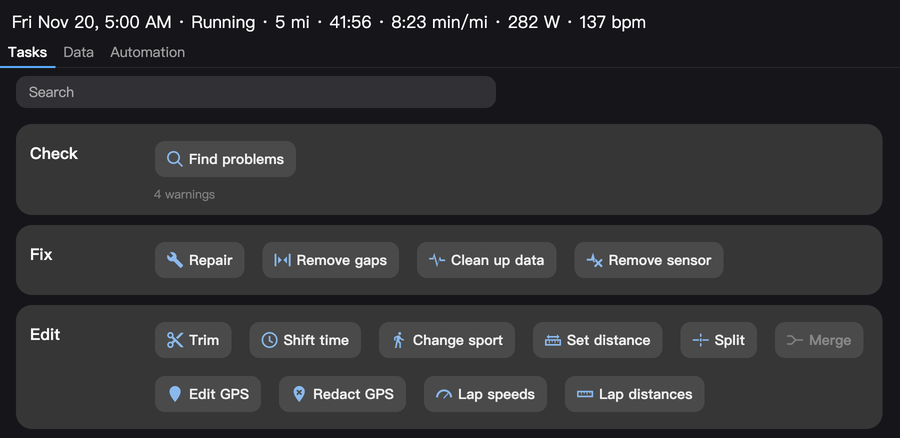
A gray task cannot run on this activity, and the note under its group says why.
If you are not sure which task you need, type the problem into Search. “Forgot to stop” finds Trim. “Treadmill” finds Lap speeds and Lap distances.
Click a task to open it. Click the arrow at the top left to go back to the list.
Every task saves a new version of the activity. Click Undo, at the top right, to go back.
Find problems
Use Find problems to see what is wrong with the file, or why Garmin or Strava might reject it.
FitEdit checks each activity when you open it.
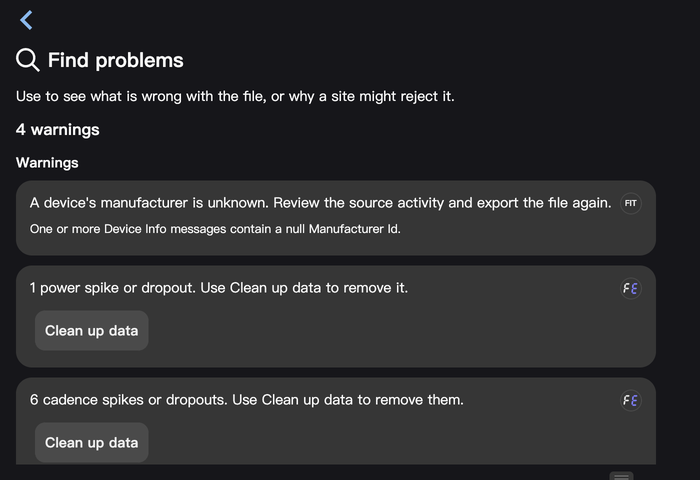
Each problem says what is wrong, and most name the task that repairs it, with a button that opens that task. The badge on the right shows who reports the problem.
- FE is a check FitEdit makes, such as spikes in heart rate.
- FIT is a check from Garmin’s FIT SDK.
- The Garmin Connect or Strava logo means that site rejects files with this problem.
At the bottom, FitEdit counts the checks that passed. Click the count to see them.
Damaged files
If part of a file is damaged, FitEdit reads the rest and says that it recovered from problems with the activity. Click Details to see each problem, with the same buttons as Find problems.
When FitEdit saves a new version of a damaged file, the new version leaves out the part it could not read. To get the original file back, use Undo.
Fix
Repair
Use Repair if the file is damaged, or if Garmin or Strava will not accept it.
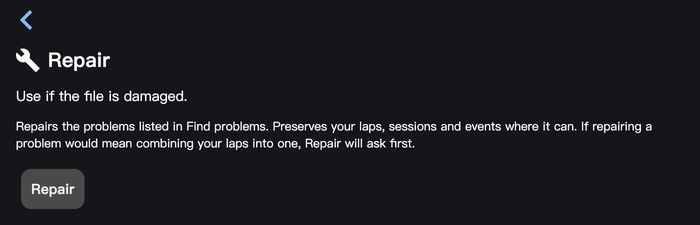
Click Repair. FitEdit repairs the problems that Find problems lists, and keeps your laps, sessions and events where it can. If a repair would combine your laps into one, FitEdit asks first.
If the file does not say where it was recorded, FitEdit asks for the time zone.
Remove gaps
Use Remove gaps if the activity has long pauses, such as a stop at a traffic light that your watch did not pause for. It shortens each pause over 60 seconds to 1 second.
Clean up data
Use Clean up data if heart rate, power, cadence or speed has spikes or is noisy. A chest strap that reads 220 at the start of a run is a common example.
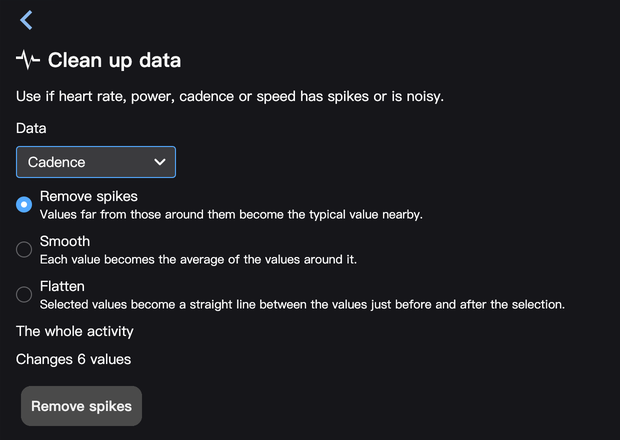
Choose the data. Then choose one of these methods.
- Remove spikes replaces values far from those around them with the typical value nearby.
- Smooth replaces each value with the average of the values around it.
- Flatten draws a straight line between the values just before and after a selection.
The method changes the whole activity, or only the part you select on the chart. Then click the button to apply it.
Remove sensor
Use Remove sensor to remove one sensor’s data from the whole activity. For example, you wore a friend’s heart rate strap, or your power meter read 50 watts high all ride.
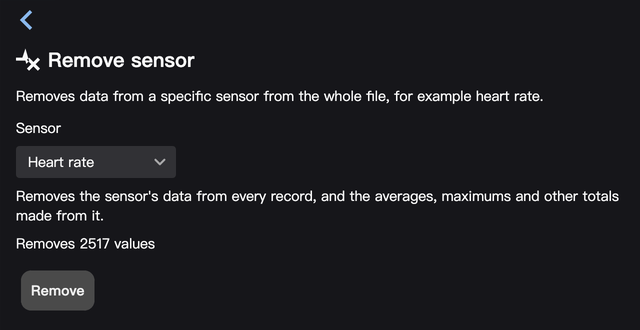
Choose the Sensor, then click Remove. FitEdit removes its data from every record, and the averages, maximums and other totals made from it.
Edit
Trim
Use Trim if part of the activity should not be there. For example, you forgot to stop your watch and it recorded the drive home.
Step 1: Drag across the chart to select the part to remove.
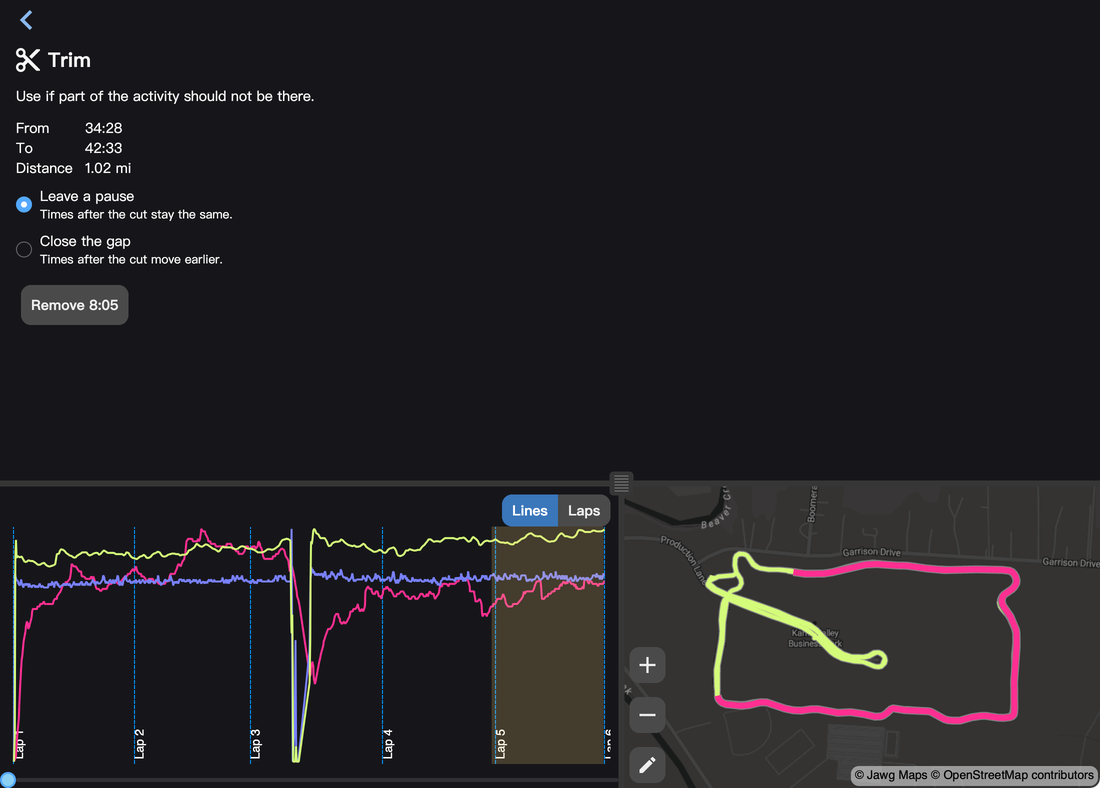
Step 2: Choose what happens to the time after the cut. Leave a pause keeps later times the same. The activity then shows a pause where the cut was. Close the gap moves later times earlier.
Step 3: Click Remove.
Shift time
Use Shift time if the start time or time zone is wrong.
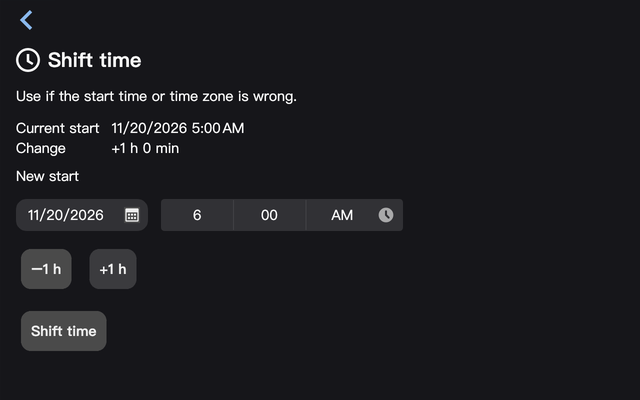
Choose a new date and start time, or click -1 h or +1 h to move it by an hour. Then click Shift time.
Change sport
Use Change sport if the sport is wrong, such as a bike ride recorded as a run. Choose the new Sport and Subsport, then click Change sport.
Set distance
Use Set distance if the total distance is wrong. Enter the right distance, such as 13.1 mi or 21.1 km, then click Set distance. FitEdit scales every distance and speed to match.
To correct one lap, use Lap distances instead.
Split
Use Split if several workouts were recorded as one activity.
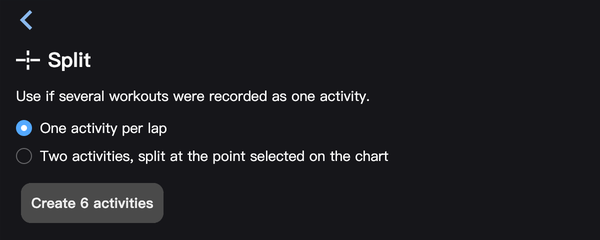
- One activity per lap makes a new activity from each lap.
- Two activities, split at the point selected on the chart cuts the activity in two. Click the chart to choose the point.
Then click Create.
Merge
Use Merge if one workout was recorded as several activities, such as a race where you stopped your watch by mistake.
Open each activity in its own tab, in order. Merge combines them, in tab order, into a new activity.
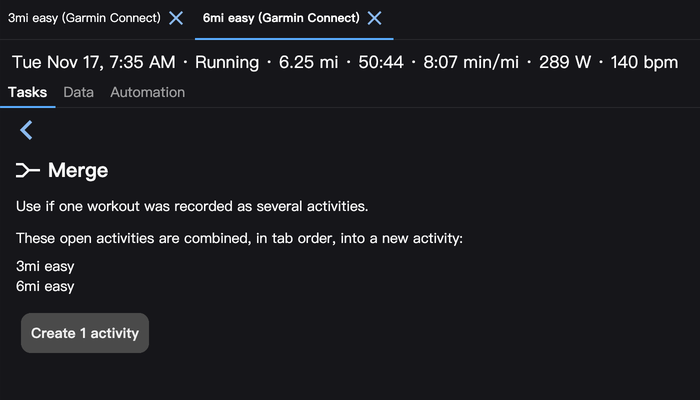
FitEdit cannot merge activities more than 49 days apart.
Edit GPS
Use Edit GPS if some GPS points are in the wrong place. See Edit GPS.
Redact GPS
Use Redact GPS to hide a place, such as where you live or work, before you share an activity.
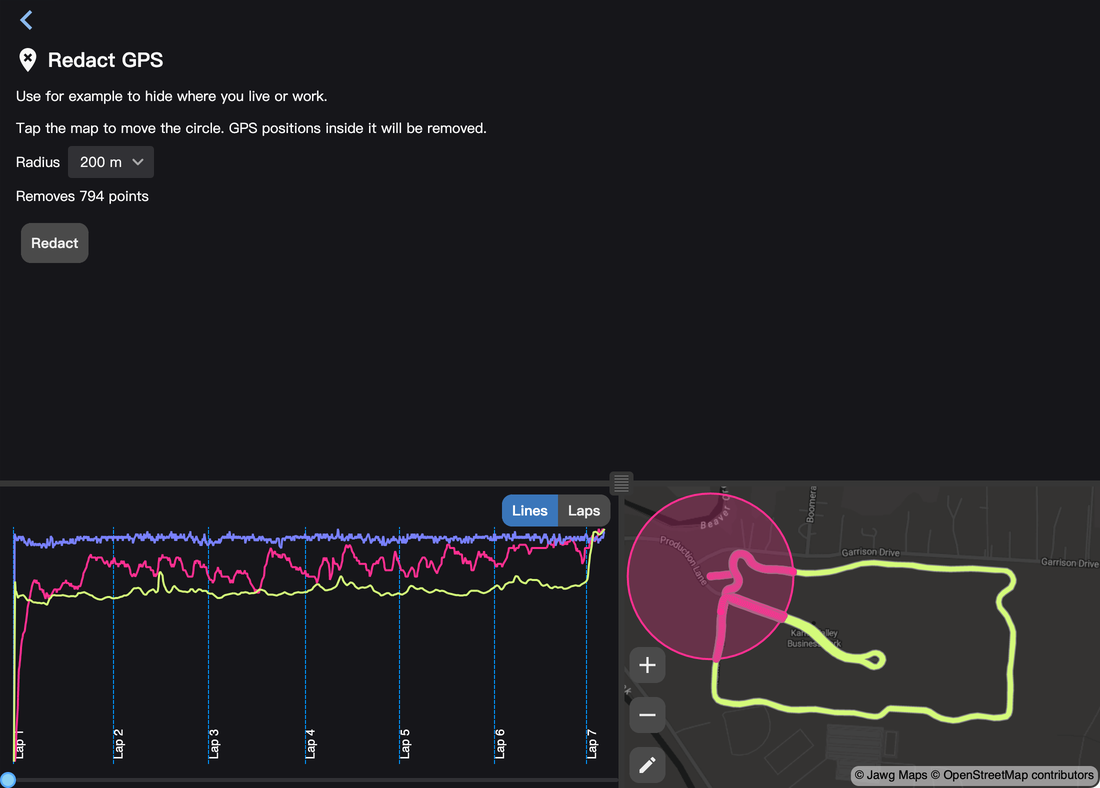
Step 1: Click the map to move the circle to the place you want to hide.
Step 2: Choose the Radius.
Step 3: Click Redact. FitEdit removes the GPS positions inside the circle. The rest of each record, such as time and heart rate, stays.
Lap speeds
Use Lap speeds if lap speeds are wrong. A treadmill run where the watch guessed the pace from your wrist is the usual case.
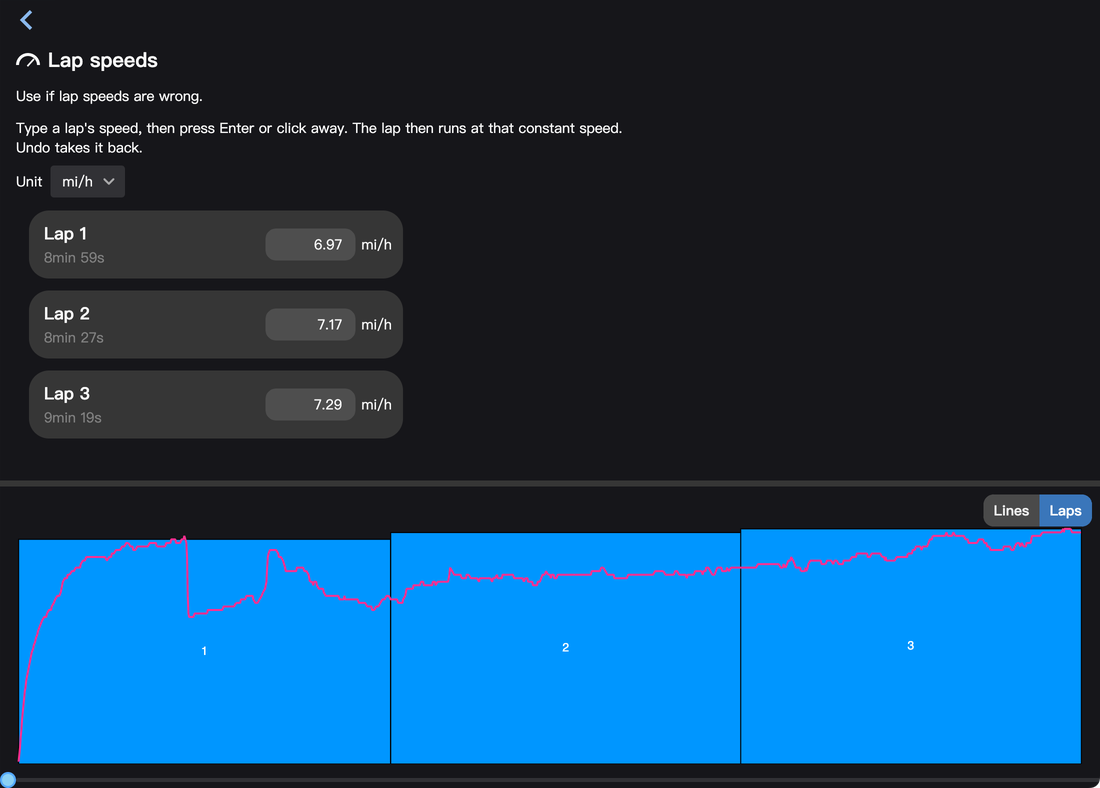
Type the speed the treadmill showed into a lap, then press Enter or click away. That lap then runs at that constant speed. Choose the Unit first if the treadmill showed something else, such as km/h.
Lap distances
Use Lap distances if lap distances are wrong, such as a treadmill run where the first lap was a mile but the watch says 1.04.
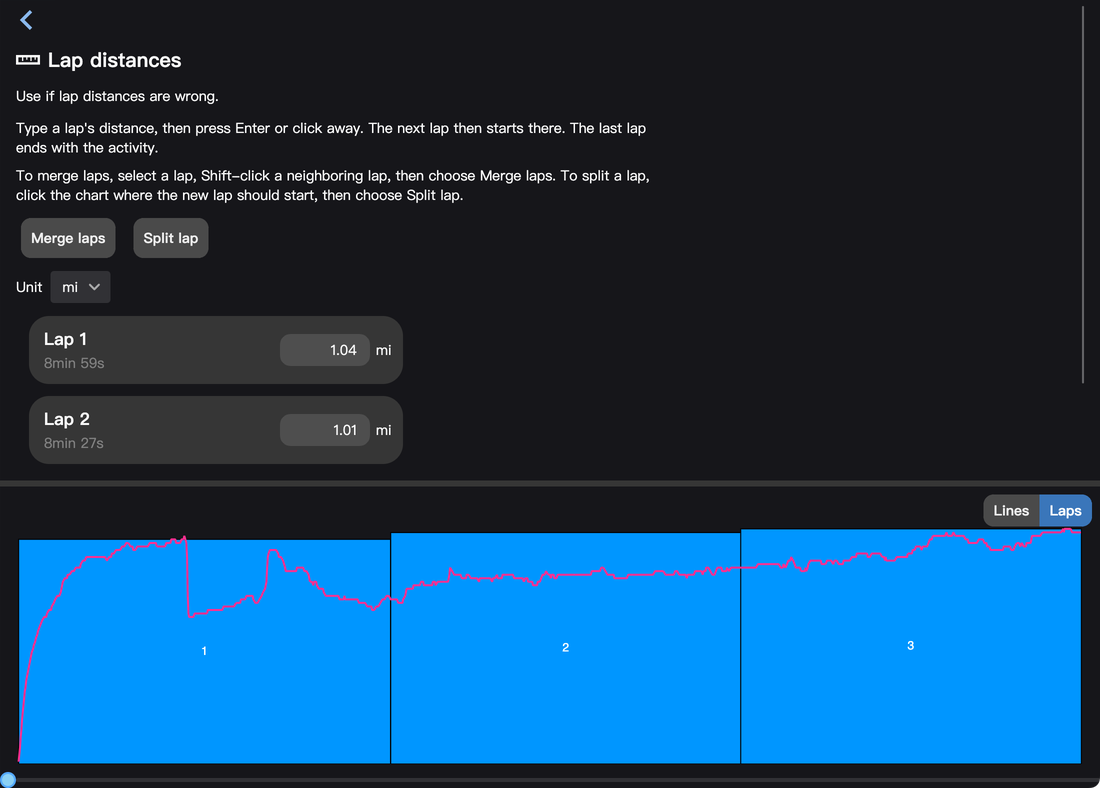
Type a lap’s distance, then press Enter or click away. The next lap then starts there. The last lap ends with the activity.
To merge laps, select a lap, Shift-click a lap next to it, then click Merge laps. To split a lap, click the chart where the new lap should start, then click Split lap.
Next
Data.