Welcome to FitEdit
This guide shows you how to use FitEdit to edit and repair FIT files.
Use the navigation on the left or begin with Setup.
You can email questions and feedback to [email protected], or post on the forum.
Setup
Follow these steps to get started.
- Install FitEdit.
- Buy a license, or try FitEdit first.
- Connect Garmin, if you use it.
Install
To install FitEdit, open the download page. It suggests the right download for your operating system. If you need something else, the releases page lists every option.
FitEdit can update itself. To stop it, turn off Update FitEdit automatically in Settings. You only need to install it one time.
Windows
The installer is an exe. Run it and follow the prompts.
If you are not sure whether your processor architecture is x64 or arm64, choose x64. It works on both.
macOS
The installer is a pkg file. Run it and follow the prompts.
If you are not sure whether your Mac has an Apple or Intel processor, choose Intel. It works on both.
Linux
FitEdit is an AppImage. There is nothing to install, but you must make the file executable.
In your terminal, go to the folder with the file and run these commands.
chmod +x ./FitEdit.AppImage
./FitEdit.AppImage
Or use your desktop environment. On GNOME, right-click the file, click Properties, and turn on Executable as Program. Then double-click the file.
Next
Buy a license
You can try FitEdit before you buy it. In trial mode, every feature works, and you can export up to 3 activities.
Activate
Step 1: Click Buy FitEdit and follow the checkout flow. At the end, your browser will show your license key. You’ll also receive it by email. It looks like fe-word-word-word-word.
Step 2: Click the gear icon at the top of the activity list to open Settings.
Step 3: Paste or type the key into the License box and click Activate.
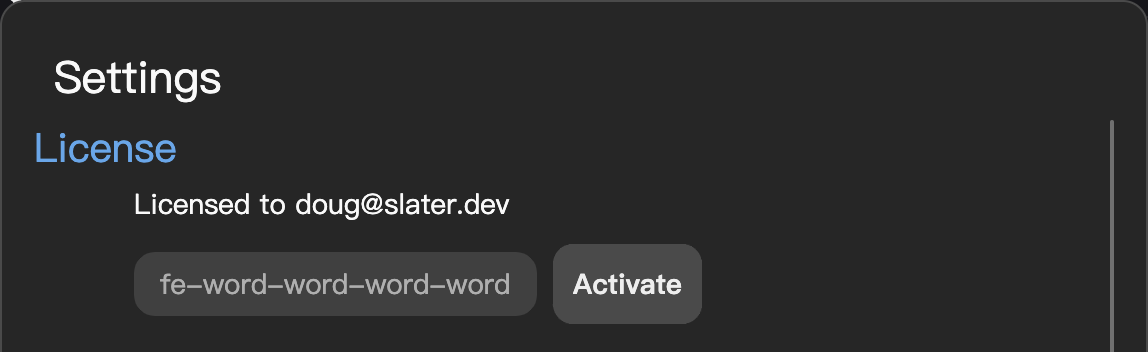
On a new computer, activate the same key again. If FitEdit says the key has been activated on too many computers, email [email protected].
Next
Connect Garmin
FitEdit can download your activities from Garmin Connect. It signs in with a Personal API key, which you create in Garmin Connect. The key lets FitEdit read your activities. It cannot change or delete them. FitEdit keeps the key encrypted on your computer and sends it only to Garmin.
The FitEdit desktop app can connect to Garmin. FitEdit in a web browser cannot.
Create a key
Step 1: In FitEdit, open Settings. Under Garmin, click Create a key in Garmin Connect. Your browser opens the Personal API key page in Garmin Connect. Sign in to Garmin Connect if it asks.
Step 2: Create a key and copy it. A key expires after 30 days to one year.
Enter the key
Step 3: In FitEdit, paste the key into the box under Garmin and click Sign in.
When it works, FitEdit shows Signed in.
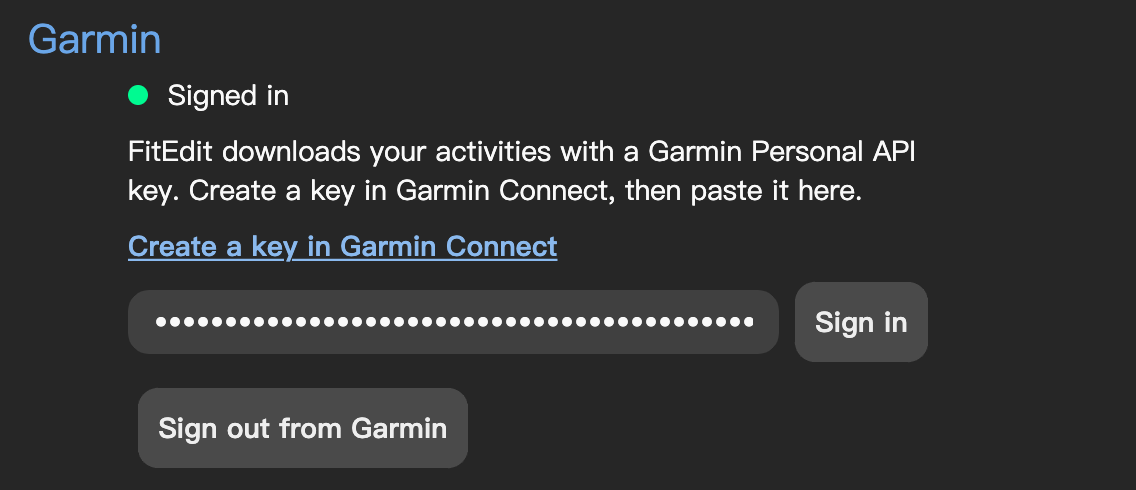
If FitEdit shows Key expired or invalid, Garmin refused the key. Create a new key and enter it.
FitEdit remembers the key. To stop using it, click Sign out from Garmin.
Download your activities
Click the ⋮ button at the top left of the activity list, then Sync from Garmin. FitEdit downloads the activities that are newer than the newest one it has.
See Activities for the other sync options.
Next
Take a tour of the Overview.
Overview
FitEdit lists your activities on the left. Activities open in the workspace on the right.
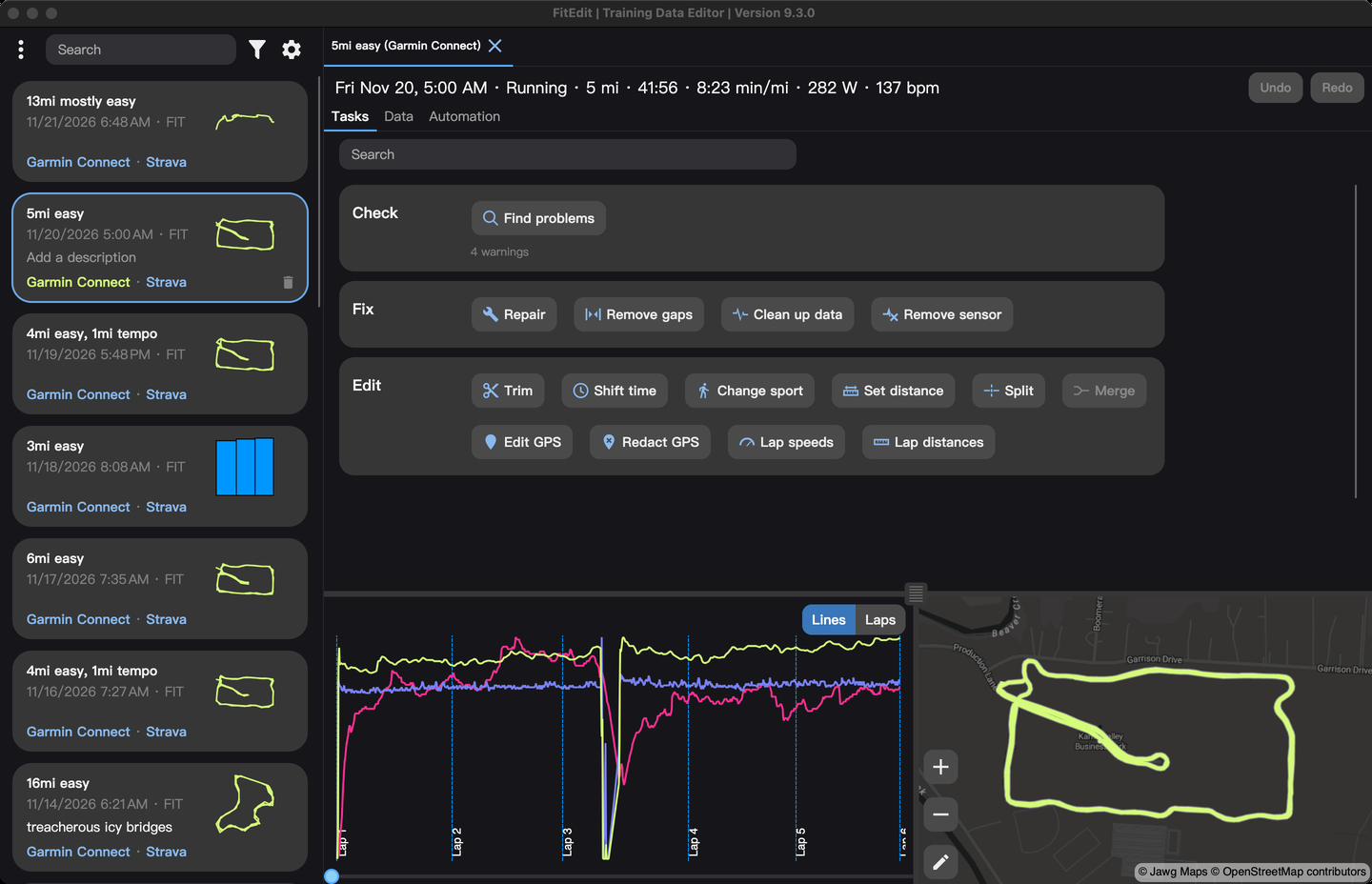
- The activity list shows every activity FitEdit has, newest first. See Activities.
- The workspace shows the activities you open. Each one gets a tab at the top. FitEdit can have several open at once.
- Under the tab is a summary of the activity. It shows the start time, sport, distance, time, pace, power and heart rate.
- Under the summary are the Tasks, Data and Automation views.
- At the bottom of the workspace are the chart and map of the activity.
- Undo and Redo are at the top right.
Tasks, Data and Automation
Tasks solves common problems, such as a watch that kept recording after you stopped, or a time zone that is off by an hour.
Data shows every value in the file in tables. You can change any of them.
Automation runs a short C# script against the open activity, for changes no task covers.
Versions, Undo and Redo
Every change saves a new version of the activity. FitEdit keeps the old versions. Undo can always go back. Redo brings back the version that Undo replaced.
| macOS | Windows and Linux | |
|---|---|---|
| Undo | Cmd+Z | Ctrl+Z |
| Redo | Cmd+Shift+Z | Ctrl+Y or Ctrl+Shift+Z |
Your changes do not reach Garmin. They stay in FitEdit until you export the activity.
Next
Activities
The activity list holds every activity FitEdit has, whether you imported it, copied it from your watch or synced it from Garmin.
The activity card
Each activity in the list is a card.
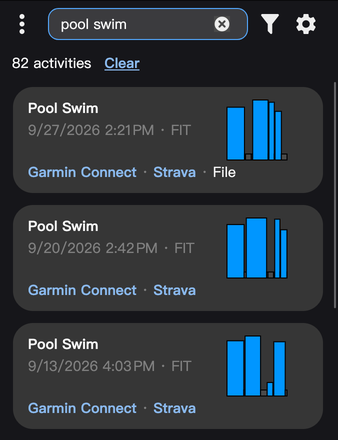
- The title is at the top. Under it are the date and time the activity started and the file format, such as FIT.
- The description comes next. If an activity has none, point at its card to see Add a description.
- The bottom line shows where the activity came from, such as Garmin Connect or File. Click Garmin Connect to open the activity on Garmin Connect.
- The thumbnail shows the GPS track if the file has one. For indoor activities, such as a treadmill run or a pool swim, the thumbnail shows laps. The thumbnail can also show heart rate and pace/speed. To choose, see Settings.
- The trash can at the bottom right removes the activity from FitEdit. Click it twice to confirm. It does not delete the activity from Garmin.
Click the title or description to change it. Press Enter to save, or Esc to cancel. The change stays in FitEdit. It does not reach Garmin.
Open an activity
Click a card to open it in a new tab.
If FitEdit has more than one copy of an activity, such as a Garmin download and a file you imported, it shows them as one card. When you open the card, FitEdit asks which copy to open.
To close an activity, click the X on its tab. If it has Data or pool length edits you have not saved, FitEdit asks what to do with them.
- Save and close saves them as a new version.
- Keep open leaves the tab open.
- Discard drops them.
Search
Type in the Search box above the list. FitEdit shows the activities whose title matches. Click Clear to see all of them again.
Filter
Click the funnel icon next to the search box.
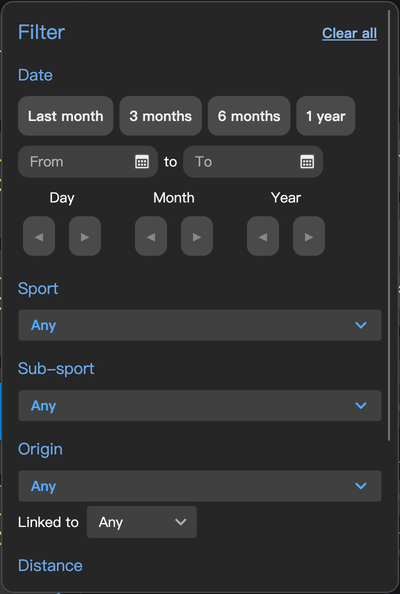
Use these filters to narrow the list.
- Date. Click Last month, 3 months, 6 months or 1 year, or choose your own dates. The arrows step the range back or forward by a day, a month or a year.
- Sport and Sub-sport are the type of activity, such as running and treadmill.
- Origin is where the activity came from. It can be a file, a device or Garmin Connect.
- Linked to is the sites that have the activity. Choose one site, every site or none.
- Distance is in miles or kilometers. Click mi to switch.
- Duration is in minutes.
- Description. Turn on Has a description to see only the activities you wrote notes for.
Click Clear all to remove every filter.
Import, export and sync
Click the ⋮ button at the top left of the list.
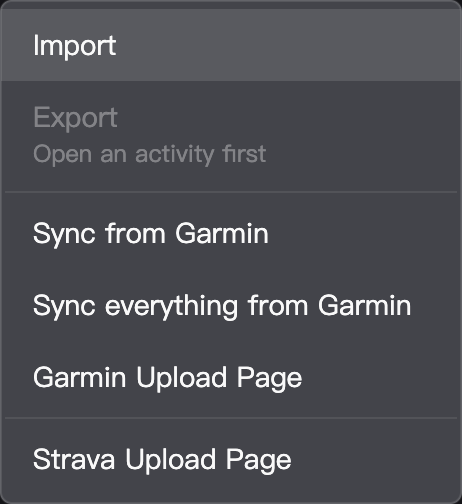
- Import adds a FIT, TCX or GPX file from your computer. You can also drag a file onto the activity list.
- Export saves the open activity as a file. You can choose FIT, TCX or GPX. In trial mode, export counts toward your 3 activities.
- Sync from Garmin downloads the Garmin activities that are newer than the newest one in FitEdit.
- Sync everything from Garmin lists every Garmin activity and downloads the ones FitEdit does not have. Use it to fill gaps. With years of activities, it can take a long time.
- Garmin Upload Page opens the Garmin Connect page for uploading a file.
- Strava Upload Page opens the Strava page for uploading a file.
To upload a fixed activity, Export it as FIT. Then click Garmin Upload Page or Strava Upload Page and choose the file.
Sync requires a Garmin Personal API key. See Connect Garmin.
Import from your Garmin device
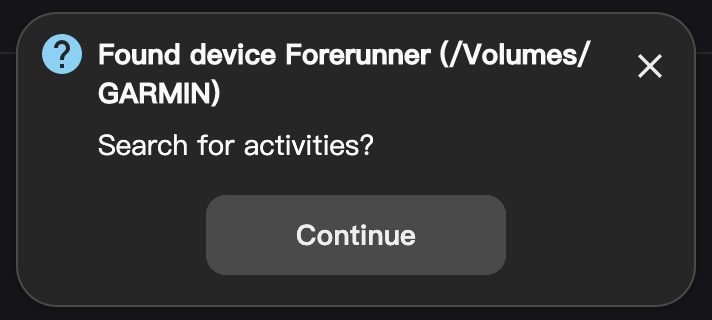
If you plug your watch into your computer’s USB port, FitEdit asks whether to search it for activities. Click Continue.
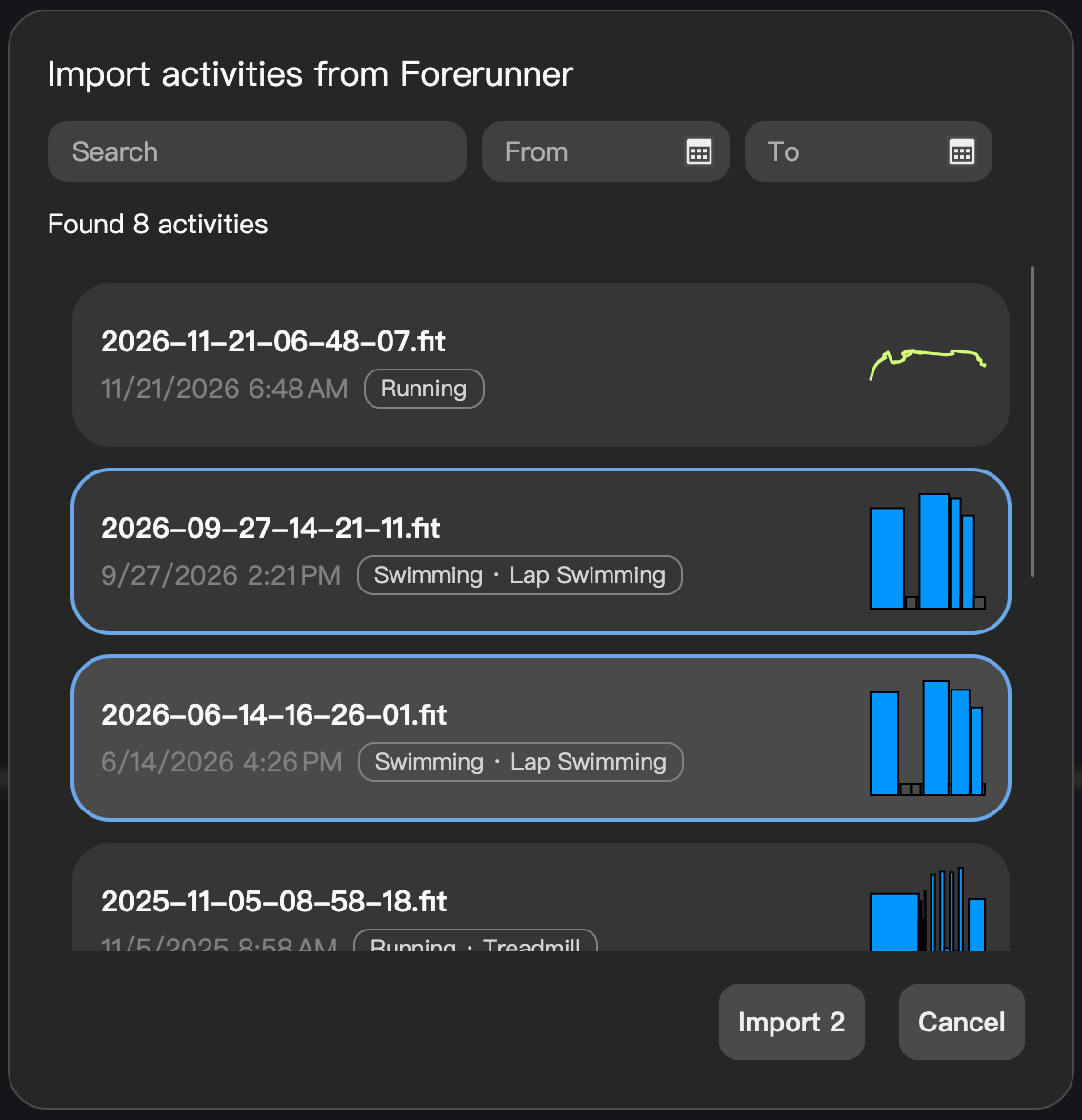
To find an activity, use Search or the From and To dates. Click each activity you want, then click Import.
If another program, such as Garmin Express, is using the watch, close that program. FitEdit will connect when the watch is free.
Next
Tasks
A task solves a common problem, such as a watch that kept recording on the drive home.
Open an activity and click Tasks. The tasks are in groups, in the order you usually use them. First Check the file and Fix bad data. Then Edit the activity.
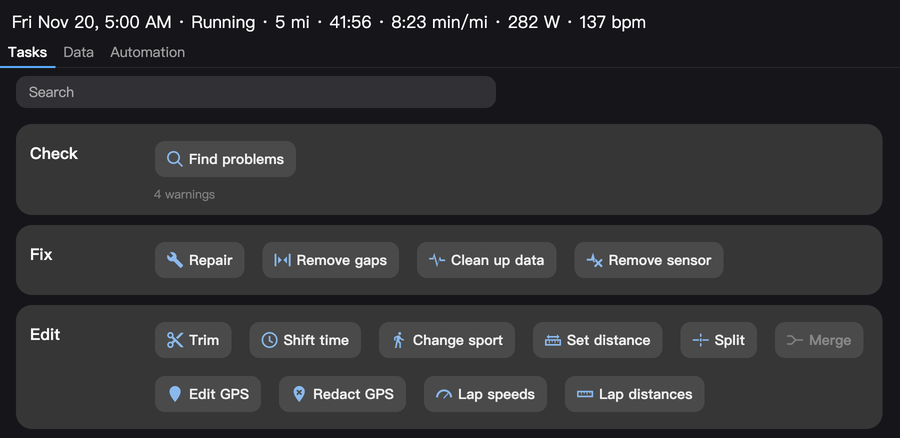
A gray task cannot run on this activity, and the note under its group says why.
If you are not sure which task you need, type the problem into Search. “Forgot to stop” finds Trim. “Treadmill” finds Lap speeds and Lap distances.
Click a task to open it. Click the arrow at the top left to go back to the list.
Every task saves a new version of the activity. Click Undo, at the top right, to go back.
Find problems
Use Find problems to see what is wrong with the file, or why Garmin or Strava might reject it.
FitEdit checks each activity when you open it.
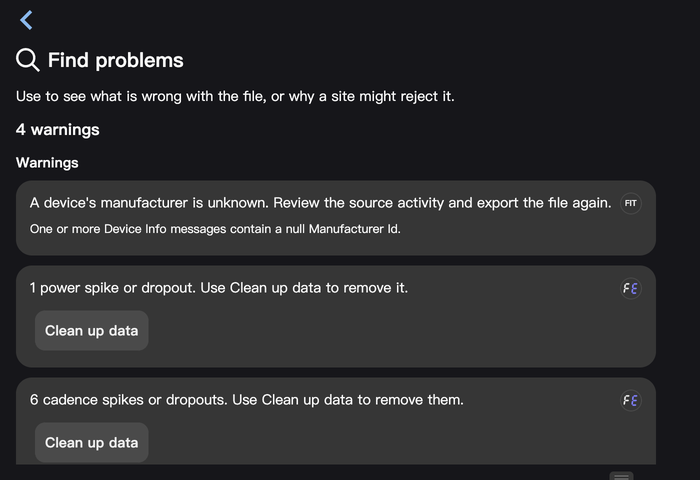
Each problem says what is wrong, and most name the task that repairs it, with a button that opens that task. The badge on the right shows who reports the problem.
- FE is a check FitEdit makes, such as spikes in heart rate.
- FIT is a check from Garmin’s FIT SDK.
- The Garmin Connect or Strava logo means that site rejects files with this problem.
At the bottom, FitEdit counts the checks that passed. Click the count to see them.
Damaged files
If part of a file is damaged, FitEdit reads the rest and says that it recovered from problems with the activity. Click Details to see each problem, with the same buttons as Find problems.
When FitEdit saves a new version of a damaged file, the new version leaves out the part it could not read. To get the original file back, use Undo.
Fix
Repair
Use Repair if the file is damaged, or if Garmin or Strava will not accept it.
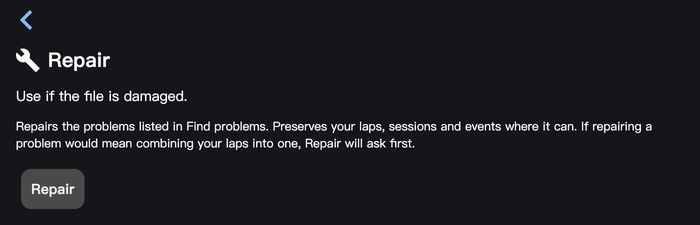
Click Repair. FitEdit repairs the problems that Find problems lists, and keeps your laps, sessions and events where it can. If a repair would combine your laps into one, FitEdit asks first.
If the file does not say where it was recorded, FitEdit asks for the time zone.
Remove gaps
Use Remove gaps if the activity has long pauses, such as a stop at a traffic light that your watch did not pause for. It shortens each pause over 60 seconds to 1 second.
Clean up data
Use Clean up data if heart rate, power, cadence or speed has spikes or is noisy. A chest strap that reads 220 at the start of a run is a common example.
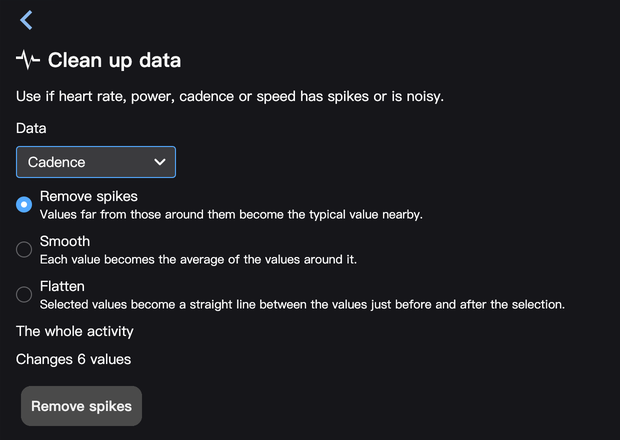
Choose the data. Then choose one of these methods.
- Remove spikes replaces values far from those around them with the typical value nearby.
- Smooth replaces each value with the average of the values around it.
- Flatten draws a straight line between the values just before and after a selection.
The method changes the whole activity, or only the part you select on the chart. Then click the button to apply it.
Remove sensor
Use Remove sensor to remove one sensor’s data from the whole activity. For example, you wore a friend’s heart rate strap, or your power meter read 50 watts high all ride.
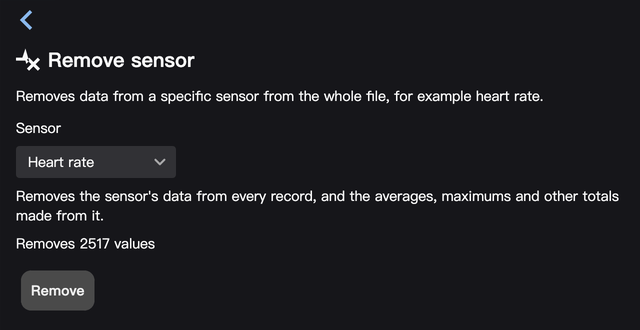
Choose the Sensor, then click Remove. FitEdit removes its data from every record, and the averages, maximums and other totals made from it.
Edit
Trim
Use Trim if part of the activity should not be there. For example, you forgot to stop your watch and it recorded the drive home.
Step 1: Drag across the chart to select the part to remove.
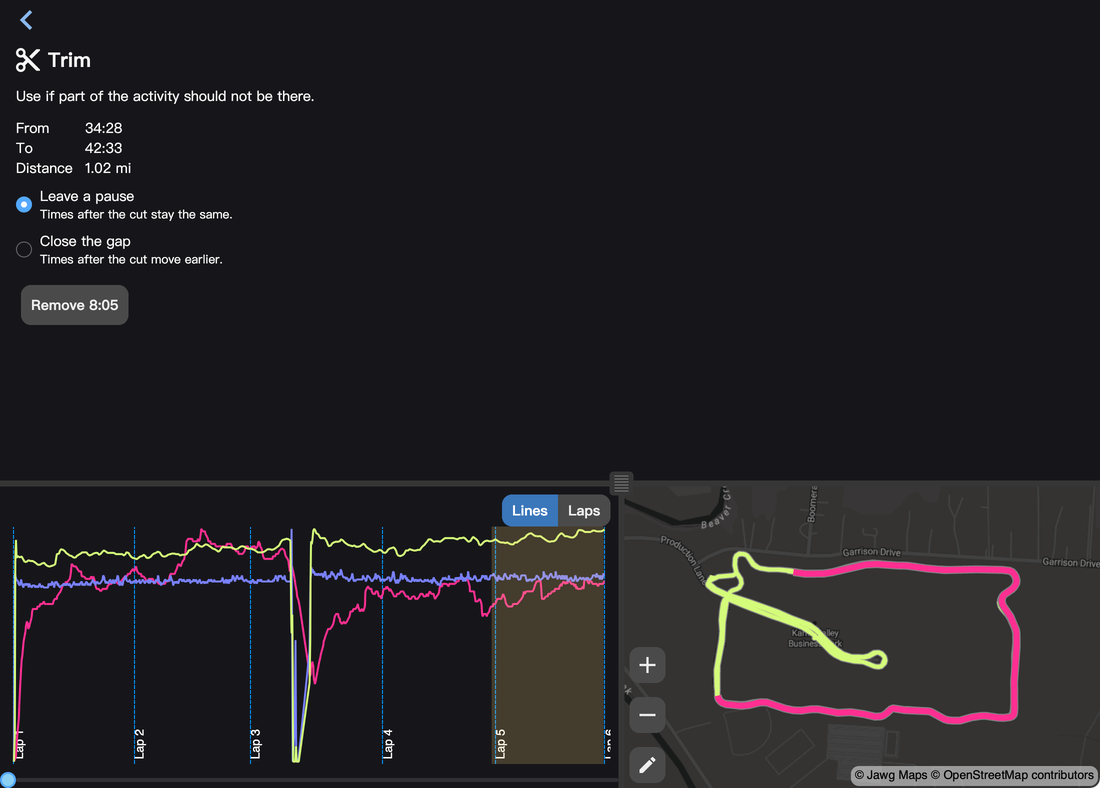
Step 2: Choose what happens to the time after the cut. Leave a pause keeps later times the same. The activity then shows a pause where the cut was. Close the gap moves later times earlier.
Step 3: Click Remove.
Shift time
Use Shift time if the start time or time zone is wrong.
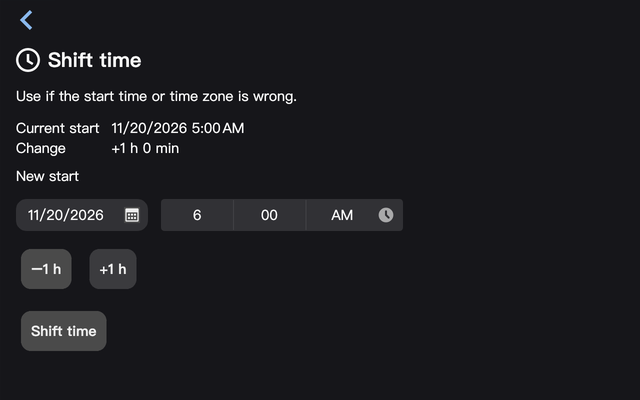
Choose a new date and start time, or click -1 h or +1 h to move it by an hour. Then click Shift time.
Change sport
Use Change sport if the sport is wrong, such as a bike ride recorded as a run. Choose the new Sport and Subsport, then click Change sport.
Set distance
Use Set distance if the total distance is wrong. Enter the right distance, such as 13.1 mi or 21.1 km, then click Set distance. FitEdit scales every distance and speed to match.
To correct one lap, use Lap distances instead.
Split
Use Split if several workouts were recorded as one activity.
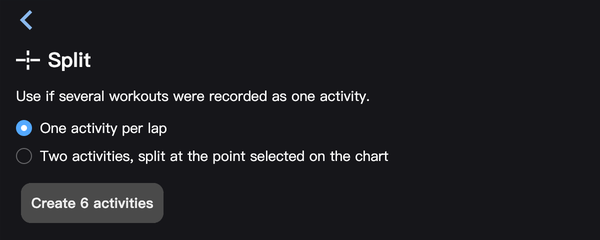
- One activity per lap makes a new activity from each lap.
- Two activities, split at the point selected on the chart cuts the activity in two. Click the chart to choose the point.
Then click Create.
Merge
Use Merge if one workout was recorded as several activities, such as a race where you stopped your watch by mistake.
Open each activity in its own tab, in order. Merge combines them, in tab order, into a new activity.
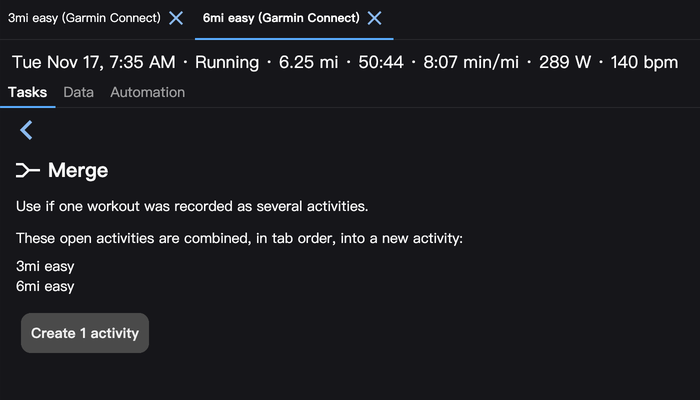
FitEdit cannot merge activities more than 49 days apart.
Edit GPS
Use Edit GPS if some GPS points are in the wrong place. See Edit GPS.
Redact GPS
Use Redact GPS to hide a place, such as where you live or work, before you share an activity.
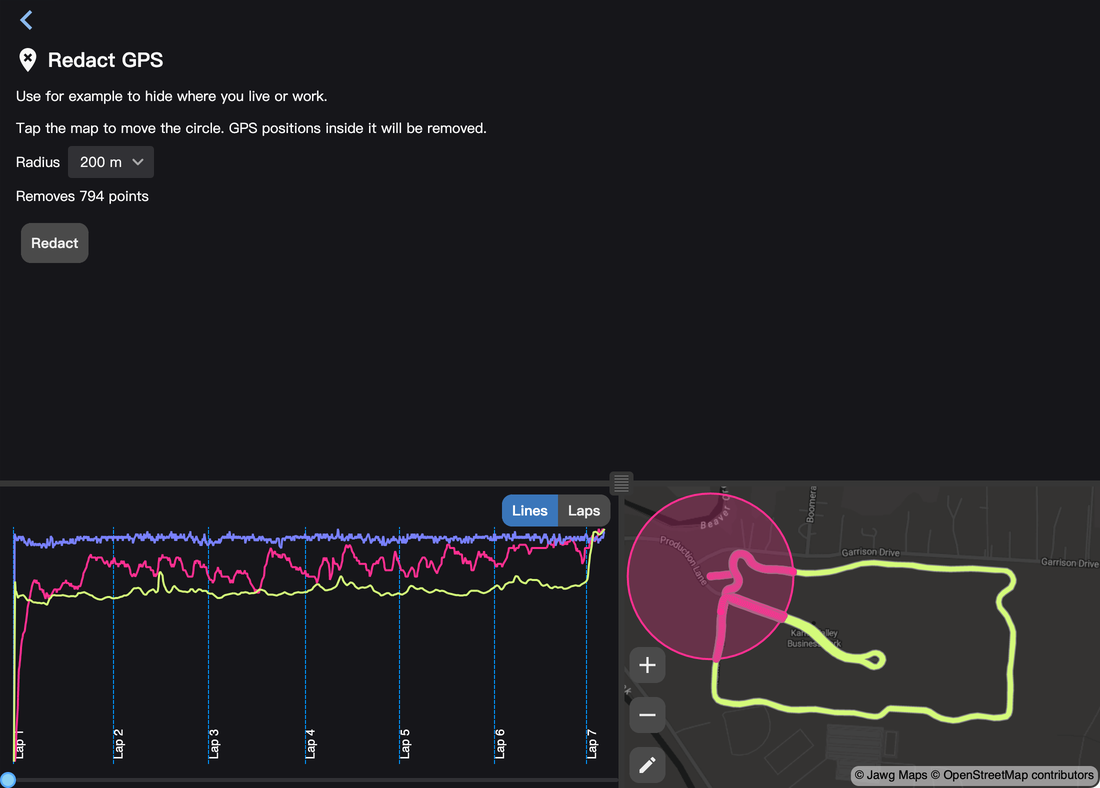
Step 1: Click the map to move the circle to the place you want to hide.
Step 2: Choose the Radius.
Step 3: Click Redact. FitEdit removes the GPS positions inside the circle. The rest of each record, such as time and heart rate, stays.
Lap speeds
Use Lap speeds if lap speeds are wrong. A treadmill run where the watch guessed the pace from your wrist is the usual case.
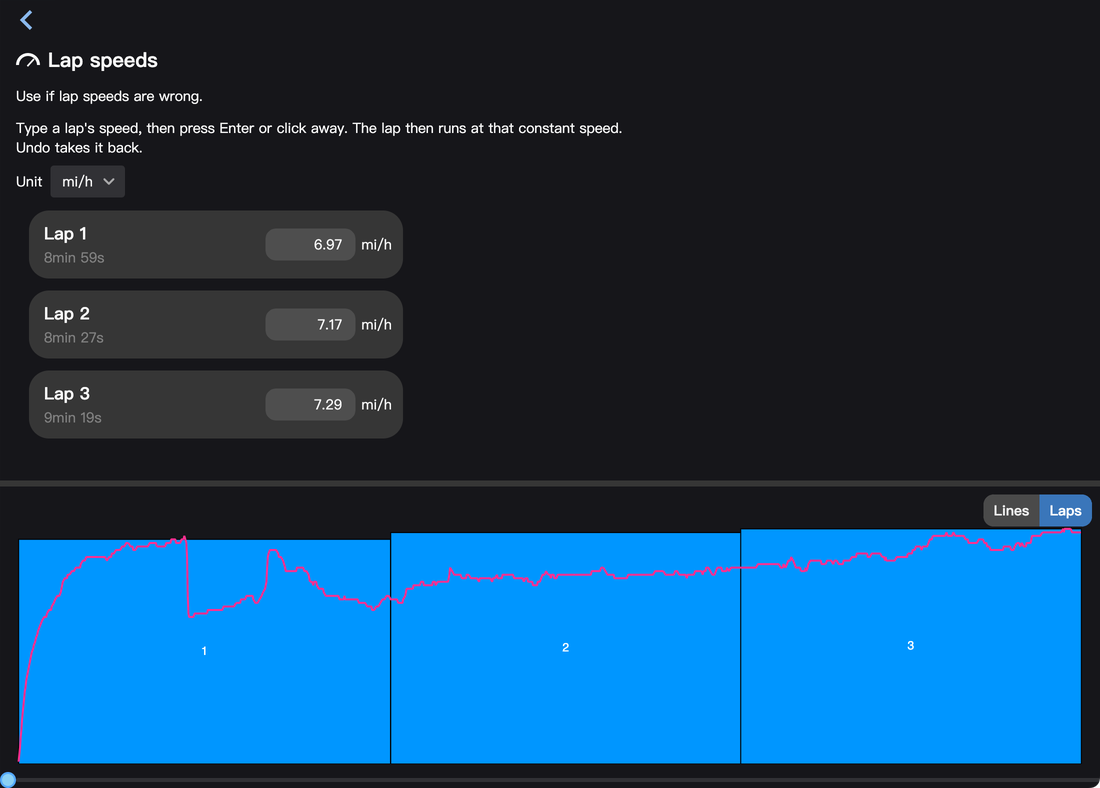
Type the speed the treadmill showed into a lap, then press Enter or click away. That lap then runs at that constant speed. Choose the Unit first if the treadmill showed something else, such as km/h.
Lap distances
Use Lap distances if lap distances are wrong, such as a treadmill run where the first lap was a mile but the watch says 1.04.
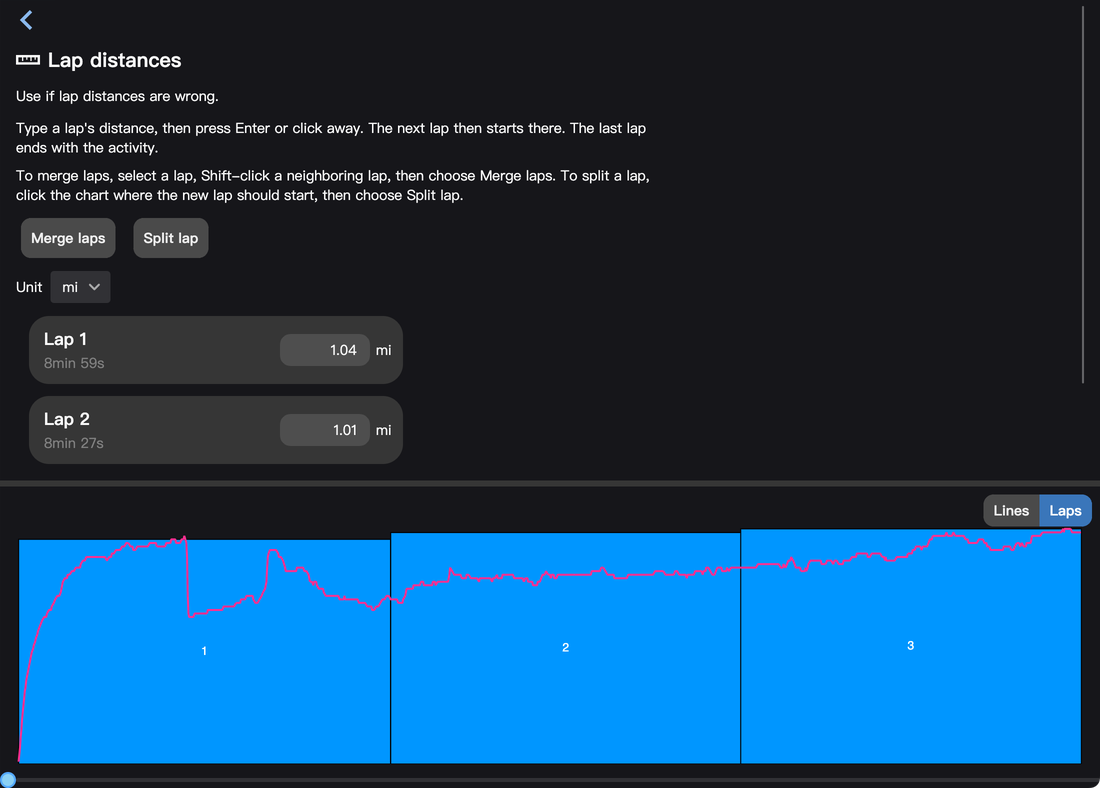
Type a lap’s distance, then press Enter or click away. The next lap then starts there. The last lap ends with the activity.
To merge laps, select a lap, Shift-click a lap next to it, then click Merge laps. To split a lap, click the chart where the new lap should start, then click Split lap.
Next
Data.
Data
The Data view shows every value in the file. Use it to change things no task covers.
A FIT file is a list of messages. Each kind of message gets its own tab, with a count. Record has a row for each second or so of the activity. Each row has the time, position, heart rate, distance and other values. Lap has a row for each lap.
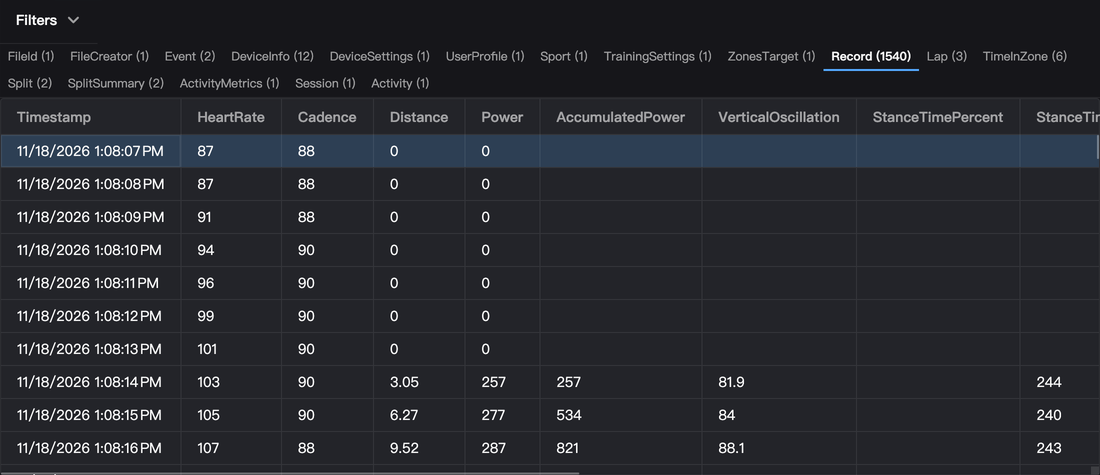
Edit a value
Click a cell and type a new value. Some cells, such as a lap’s Event, are drop-down menus.
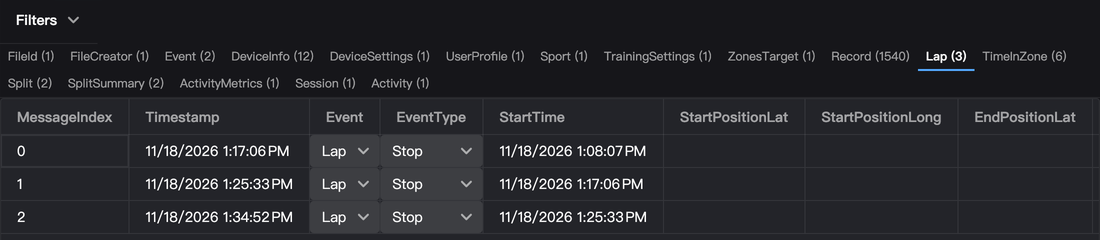
When you are done, click Save Changes. FitEdit saves a new version, and Undo goes back.
Before you run a task or export, you must save your edits. If you close the tab first, FitEdit asks whether to save.
Rows
Right-click a row to see more actions.
- Duplicate copies the row.
- Delete removes the row.
- Delete and subtract distance removes a record and takes its distance out of the records after it. Use it to remove a GPS jump without leaving a gap in the distance.
- Split lap starts a new lap at this record.
- On the Lap tab, select two or more laps next to each other and choose Merge laps to make them one lap.
Sort
Click a column header to sort by that column. Click it again to reverse the order. For example, sort Record by HeartRate to find the highest reading.
Filters
Use the Filters menu to hide data you do not need.
- Hide unused columns hides columns with no values.
- Hide unnamed tabs and Hide unnamed columns hide messages and fields that the FIT standard does not name. Devices often add these.
- Pretty data shows a date instead of a raw timestamp such as
945518320, and “Running” instead of1.
Next
Chart and map
Below the tasks are the chart and the map of the activity.
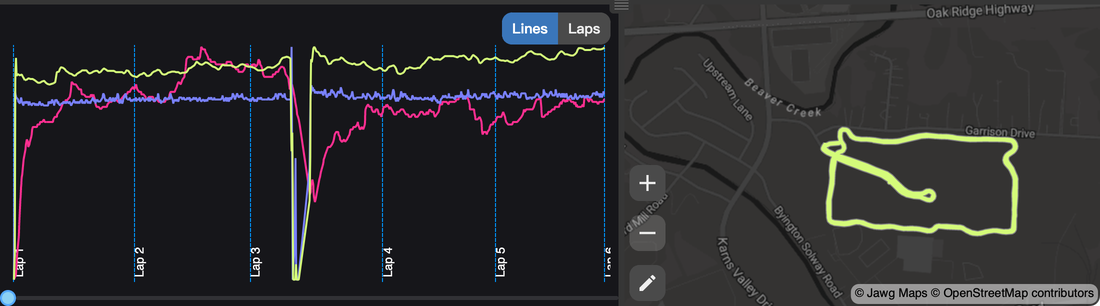
Chart
The chart has two views. Click Lines or Laps, at its top right, to switch.
Lines shows heart rate, speed (or pace, for activities on foot) and cadence over time. Dashed lines mark the start of each lap.
Laps shows each lap as a bar. A taller bar is a faster lap, and a wider bar is a longer one. The heart rate line stays.
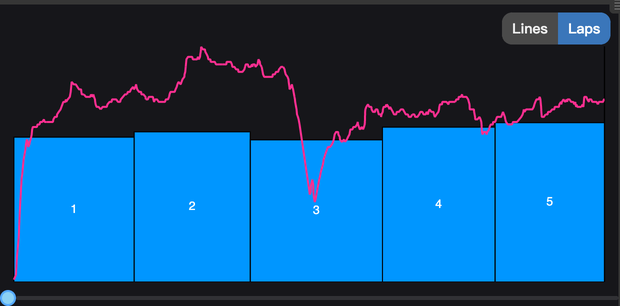
If you have more than one activity open, the others appear in gray behind the one you are looking at.
Drag across the chart to select part of the activity. Tasks such as Trim and Clean up data use the selection. Click the chart to select one point, as Split does. In Laps, click a bar to select that lap, and Shift-click to add the laps next to it.
The slider under the chart moves through the activity one point at a time. The map shows where you were at that point.
Map
The map shows the route. Use + and - to zoom, or scroll. Drag to move the map.
To change the map style, open Settings and choose Dark, Satellite or Street.
An activity without GPS, such as a treadmill run, has no map.
Edit GPS
Use this if some GPS points are in the wrong place, such as a track that cuts through a building next to the road.
Step 1: Click the pencil button on the map, or the Edit GPS task.
Step 2: Zoom in until you can see each point, then drag points to where they belong.
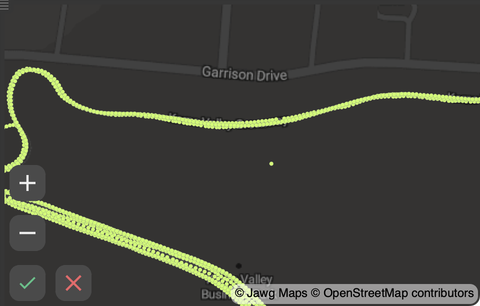
Step 3: Click the green check to save. Or click the red X to discard your changes.
Next
Pool swims
Your watch counts pool lengths from your wrist. Sometimes it counts wrong. It can count two lengths where you swam one, or one where you swam two.
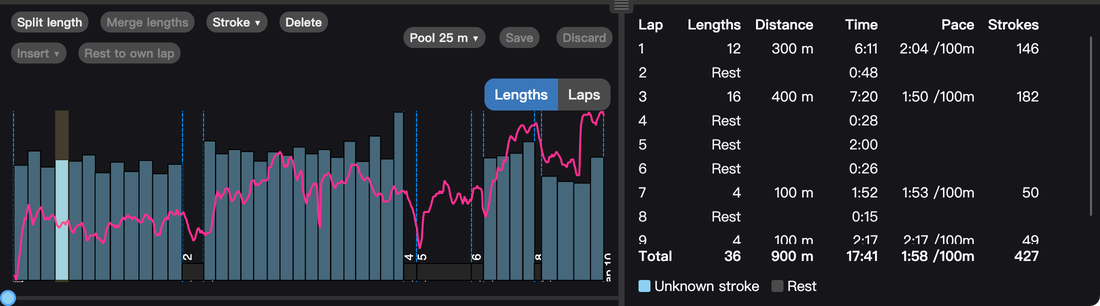
When you open a pool swim, FitEdit draws each length as a bar and lists the laps where the map would be.
Chart
Click Lengths or Laps to switch views.
In Lengths, each length is a bar. A taller bar is a faster length. Its color is its stroke, and the legend under the lap list names each color. Rests are dark. Point at a bar to see its lap, length, stroke, time, pace and strokes.
Click a bar to select a length. Shift-click to select a range of lengths in the same lap.
Lap list
Each row is a lap, with its lengths, distance, time, pace per 100 and strokes. A rest lap shows only its time. The totals are at the bottom.
Edit pool lengths
The buttons above the chart change the selected lengths.
- Split length makes one length into two. Use it when the watch missed a turn.
- Merge lengths makes two lengths next to each other into one. Use it when the watch counted a turn that did not happen.
- Stroke sets the stroke of the selected lengths to freestyle, backstroke, breaststroke, butterfly, drill or mixed.
- Delete removes the selected lengths.
- Insert adds a length at the start or end of the selected rest. Use it when you swam during what the watch thought was a rest.
- Rest to own lap moves the rests in a lap into a lap of their own.
You can also right-click a bar for the same edits.
FitEdit may suggest useful edits. To see them, click the suggestions button above the chart. For example, Split length 14 means length 14 looks like two lengths recorded as one. Click Apply to make that edit, or Apply all for every suggestion.
Pool length
If the pool length is wrong, such as a 25 yard pool recorded as 25 meters, click the Pool button. Enter the right length and unit, then click Set. FitEdit changes every distance and pace to match.
Save or discard
Length edits are not saved until you click Save. Until then, Undo and Redo step through them one at a time. Click Save to keep them all as one new version, or Discard to drop them.
Before you run another task, save or discard your length edits. If you close the tab first, FitEdit asks whether to save.
To set a lap’s distance in whole lengths, you can also use Lap distances.
Next
Automation
Automation runs a short C# script against the open activity. Use it for changes that no task covers and that would take too long by hand in Data.
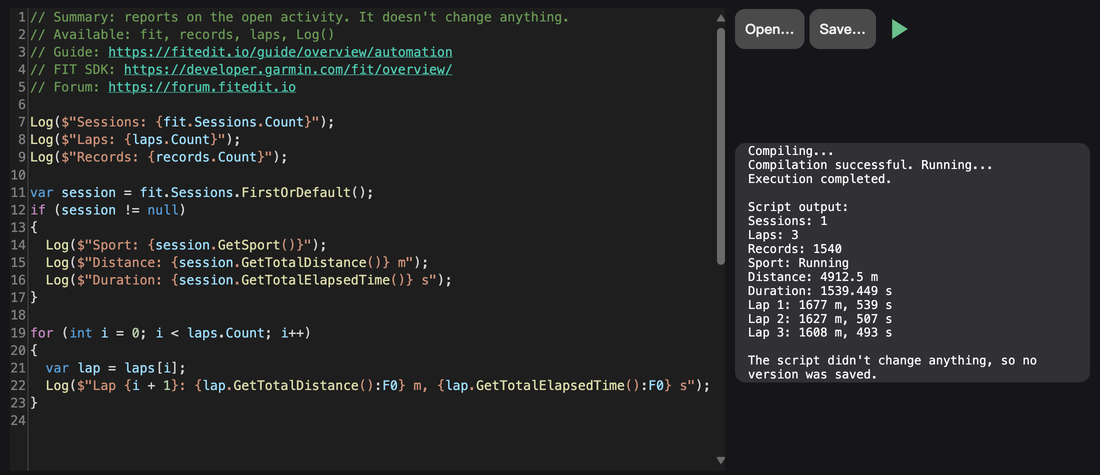
The script can use these names.
fitis the whole file.recordsis the list of Record messages.lapsis the list of Lap messages.Log()prints to the box on the right.
The script can also call anything in the Garmin FIT SDK, Garmin’s software library for reading and writing FIT files. Each record is a RecordMesg and each lap is a LapMesg, with a getter and setter for every field, such as GetHeartRate() and SetEnhancedSpeed(). See the FIT protocol to learn about the FIT file format.
The sample script prints a summary of the activity and each lap’s distance and time. It does not change anything. Change it to suit what you need, then click the green play button.
Click Save… to keep a script in a file, and Open… to load it again.
Example
This script removes every heart rate reading over 200. A chest strap can read that high before it warms up.
int removed = 0;
foreach (var record in records)
{
  if (record.GetHeartRate() > 200)
  {
    record.SetHeartRate(null);
    removed++;
  }
}
Log($"Removed {removed} heart rate readings");
If the script changes the activity, FitEdit saves it as a new version. Undo goes back.
Automation requires a license.
Next
Settings
Click the gear icon at the top of the activity list to open Settings. Click outside it to close it.
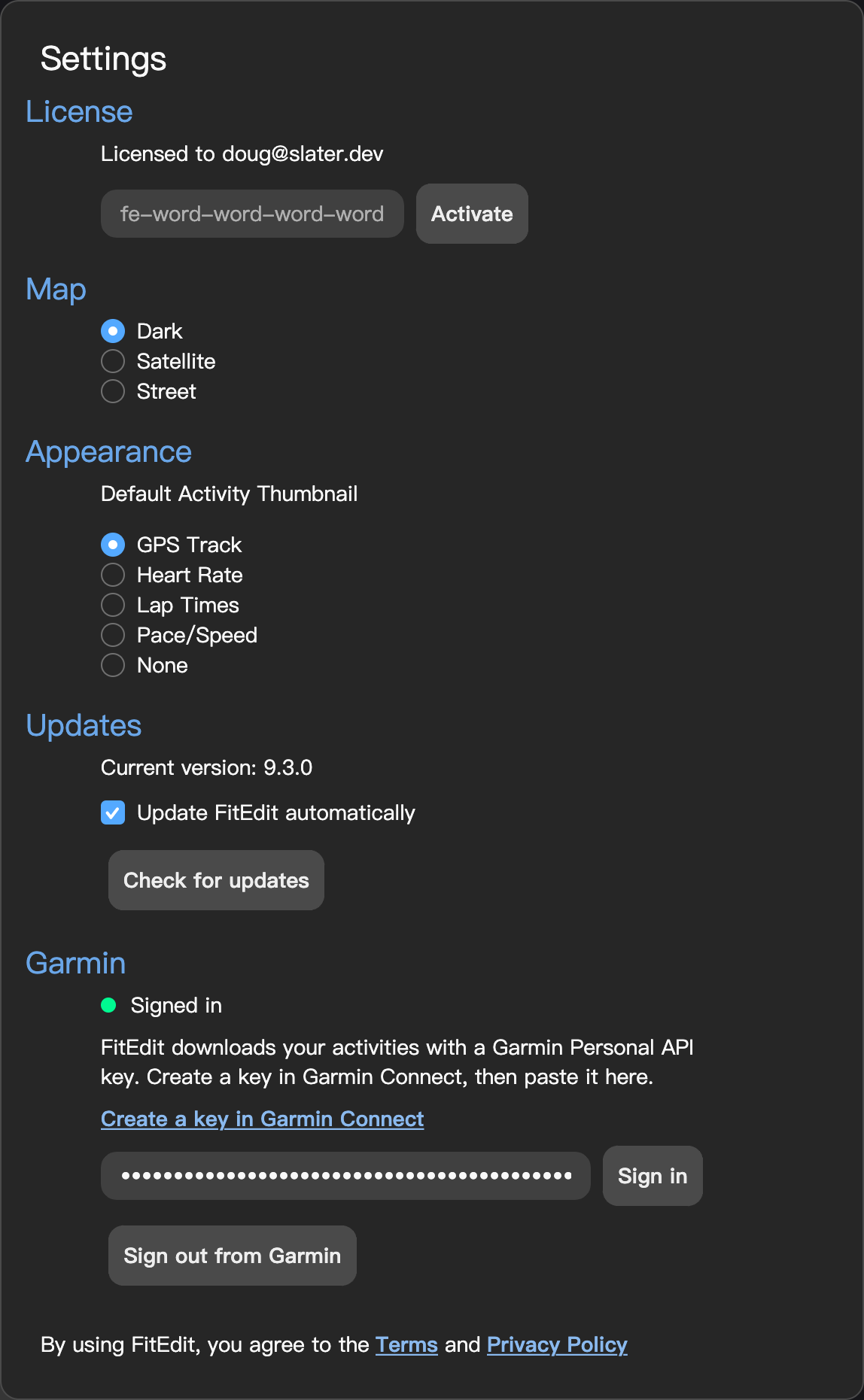
- License shows who your license belongs to. Paste a key here and click Activate. See Buy a license.
- Map sets the map style to Dark, Satellite or Street.
- Appearance sets the picture on each activity card. Choose GPS Track, Heart Rate, Lap Times, Pace/Speed or None.
- Updates shows the version you have. Update FitEdit automatically is on by default. Turn it off to stay on the version you have. Click Check for updates to check now.
- Garmin shows whether FitEdit is signed in with your Personal API key. Paste a key and click Sign in, or click Sign out from Garmin. See Connect Garmin.
Next
Appendix
- File formats lists the files FitEdit reads and writes.
- Storage says where FitEdit keeps your data, and how to move it.
File formats
FitEdit reads and writes these file formats.
| Format | Extension |
|---|---|
| FIT | .fit |
| TCX | .tcx |
| GPX | .gpx |
Most watches and bike computers record FIT. It holds the most detail of the three, including laps, sessions, device settings and heart rate zones. When you have a choice, use FIT.
Files without timestamps
Some GPX files, such as routes drawn in a planner, have points with no times. FitEdit cannot export these until the points have times.
When you open one, FitEdit asks you to add timestamps. Choose the start time. Then choose how to time the points.
- From a duration or pace spreads the points over their distance at a constant pace.
- From speed uses the speed the file gives at each point.
- Fixed interval puts one point every few seconds.
Undo returns to the original file.
Next
Storage
FitEdit keeps your activities on your computer, in a folder named FitEdit-Data. Its location depends on your operating system.
| OS | Folder |
|---|---|
| Windows | %LOCALAPPDATA%\FitEdit-Data |
| macOS | ~/Library/Application Support/FitEdit-Data |
| Linux | ~/.local/share/FitEdit-Data |
It holds a database of your activities in db, their files in Files, and logs in Logs. FitEdit works without an internet connection, and your data stays on your computer.
Move your data
You can keep your data somewhere else, such as a folder that Dropbox or OneDrive syncs.
Step 1: Quit FitEdit.
Step 2: Move the contents of FitEdit-Data to the new folder.
Step 3: Open appsettings.json in FitEdit-Data. Set StorageRoot to the new folder, as in this example.
{
  "StorageRoot": "C:/Users/you/Dropbox/FitEdit"
}
Step 4: Start FitEdit.
appsettings.json stays in FitEdit-Data. Only the data moves.
Back up
To back up FitEdit, quit it and copy the data folder.